Links in and out of documents
Within a document, it’s easy to add a link to another component, another page, another document, or remote web link.

Scryber supports the standard a anchor tag with the href attribute for linking between items.
As a component itself it has no explicit content, but it can support any type of content within it.
The default style for the a tag has blue text with an underline.
<!-- xmlns='http://www.w3.org/1999/xhtml' -->

<a href='https://www.scyber.co.uk' >Link to scryber</a>

<a href='#componentId' >Link to local component with ID 'componentId'</a>

<a href='LastPage' >Link to the last page in the document</a>
The a tag has a standard base class of Scryber.Components.Link. The base Link class does not infer any styles, and inner content
should be styled appropriately.
//using Scryber.Components

var href = new Link() { File = "https://scryber.co.uk", Action = LinkAction.Uri  };
href.Contents.Add(new TextLiteral("Link to scryber"));

var complink = new Link() { Destination = "#componentId", Action = LinkAction.Destination };
complink.Contents.Add(new TextLiteral("Link to local component with ID 'componentId'"));

var nav = new Link() { Action = LinkAction.LastPage };
nav.Contents.Add(new TextLiteral("Link to the last page in the document"));
nav.Style.Text.Decoration = Text.TextDecoration.Underline;
Generation methods
All methods and files in these samples use the standard testing set up as outlined in ../overview/samples_reference
The Anchor Component
An `a`nchor tag is an invisible component (although styles will be applied to content within it) that allows linking to other components. The href attribute supports 3 types of content.
url - A relative or remote link to a document or webpage.
Named Action - These are the standard links to and from pages (see below).
#id - If set, then the link is an action for a different document or Url. Effectively like the href of an anchor tag in html.
The content within a link can be anything, including images; text; svg components and more. There can also be more than one component within the link.
By default the a tag is inline with a style applied for any inner text of underlined blue,
but it does support the use of being positioned as a block and all other styling options.
Relative or Remote Links
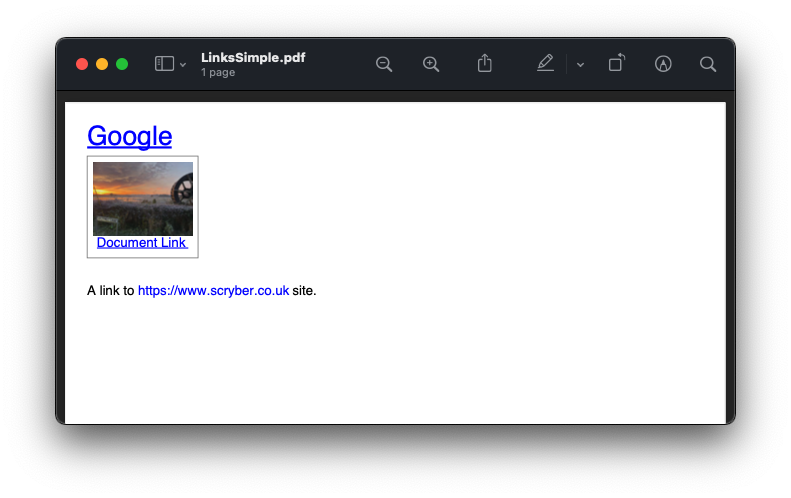
Using the href attribute a remote link can be made to any url or local document. Links can also contain images or any other content, and can use the target=’_blank’ to open in a new tab.
<!-- /Templates/Links/LinksSimple.html -->
<!DOCTYPE html>
<html xmlns="http://www.w3.org/1999/xhtml">
<head>
    <title>Remote and Relative Links</title>
</head>
<body style="padding:20pt">

    <!-- A web link to the google home page -->
    <a href="https://www.google.com" target="_blank">Google</a><br />

    <!-- a link to a local pdf that will open in a new reader tab or window -->
    <a href="AnotherDocument.pdf" target="_blank">
        <div style="border:solid 1px gray; padding:5pt; text-align:center; font-size: 12pt; width: 100pt;">
            <img src="../../images/landscape.jpg" />Document Link
        </div>
    </a><br/>
    <br/>
    <!-- binding the url to a document parameter -->
    <span style="font-size:12pt;">A link to <a href="{{siteurl}}" style="text-decoration: none;">{{siteurl}}</a> site.</span>
</body>
</html>
//Scryber.UnitSamples/LinkSamples.cs

public void SimpleNavigationLinks()
{
    var path = GetTemplatePath("Links", "LinksSimple.html");

    using (var doc = Document.ParseDocument(path))
    {
        using (var stream = GetOutputStream("Links", "LinksSimple.pdf"))
        {
            doc.Params["siteurl"] = "https://www.scryber.co.uk";
            doc.SaveAsPDF(stream);
        }

    }
}
Note
By the very nature of documents, they can be moved around. Relative links may not be appropriate, but can be bound and converted to absolute links as needed.
Page Named Action
Navigation within a document can be done using a predefined action for the reader to take. The possible actions are (case insensitive) as follows:
FirstPage
PrevPage
NextPage
LastPage
These are self-evident in their purpose, and no other attributes need defining. It does not matter what page they are put on, they will perform the action if possible.
<a href='nextpage' >Next Page Link</a>
For example we can create a navigation set of links.
<!-- /Templates/Links/LinksNamedActions.html -->
<!DOCTYPE html>
<html xmlns="http://www.w3.org/1999/xhtml">
<head>
    <meta charset="utf-8" />
    <title>Simple Links</title>
    <style>
        .break-before{ page-break-before: always; }
    </style>
</head>
<body style="padding:20pt">
    <template data-bind="{{pages}}">
        <div class="{{if(index() > 0, 'break-before', 'break-none')}}">
            <h4>Content for the {{.Id}} page with number <page /></h4>
            <a href="FirstPage">First Page</a>,
            <a href="PreviousPage">Previous Page</a>,
            <a href="NextPage">Next Page</a>,
            <a href="LastPage">Last Page</a>
        </div>
    </template>
</body>
</html>
//Scryber.UnitSamples/LinkSamples.cs

public void NamedActionLinks()
{
    var path = GetTemplatePath("Links", "LinksNamedActions.html");

    using (var doc = Document.ParseDocument(path))
    {
        var pages = new[] { new { Id = "first" }, new { Id = "second" }, new { Id = "third" }, new { Id = "fourth" } };
        doc.Params["pages"] = pages;

        using (var stream = GetOutputStream("Links", "LinksNamedActions.pdf"))
        {
            doc.SaveAsPDF(stream);
        }

    }
}

In this sample we are binding to an array of strings, and then setting the class on an outer div, so that there is a page break before the div on every itteration *except* the first
See ../overview/parameters_and_expressions for more information on binding to data and objects.
Styling Links
Although the default style is inline with blue text and underline. Links can be styled independently.
In this example we use a footer template for the navigation links between pages (see ../overview/pages_and_sections for more on page headers and footers).
We style the footer with a table where the links are set in 50pt wide cells, and the centre cell takes up the rest of the space for a Page N of Total.
<!-- /Templates/Links/LinksStyledFooter.html -->
<!DOCTYPE html>
<html xmlns="http://www.w3.org/1999/xhtml">
<head>
<meta charset="utf-8" />
<title>Navigation Links</title>
<style>
.break-before{ page-break-before: always; }
h4{ margin: 20pt; padding: 20pt; background-color: #AAA; }
/* Styled bottom footer of the page */
footer{ background-image: linear-gradient(#000, #333); padding: 4pt;}
footer .nav{ width:100%; font-size: 14pt; }
/* Standard table cell style */
footer .nav td { border:none; text-align: center; vertical-align:bottom; color:white; }
/* The navigation link cells are 50pt */
footer .nav-item { width: 50pt; }
/* The links are white with no underline */
footer .nav-item > a { font-weight: bold; text-decoration: none; color: white;}
</style>
</head>
<body>
<template data-bind="{{pages}}">
<div id="{{.Id}}" class="{{if(index() > 0, 'break-before', 'break-none')}}">
<h4>Content for the {{.Id}} page with number <page /></h4>
</div>
</template>
<footer>
<table class="nav">
<tr>
<td class="nav-item">
<a href="FirstPage"><<</a>
</td>
<td class="nav-item">
<a href="PreviousPage"><</a>
</td>
<td>
Page <page /> of <page property="total" />
</td>
<td class="nav-item">
<a href="NextPage">></a>
</td>
<td class="nav-item" >
<a href="LastPage">>></a>
</td>
</tr>
</table>
</footer>
</body>
</html>
//Scryber.UnitSamples/LinkSamples.cs

public void StyledFooterNavigationLinks()
{
    var path = GetTemplatePath("Links", "LinksStyledFooter.html");

    using (var doc = Document.ParseDocument(path))
    {
        var pages = new[] { new { Id = "first" }, new { Id = "second" }, new { Id = "third" }, new { Id = "fourth" } };
        doc.Params["pages"] = pages;

        using (var stream = GetOutputStream("Links", "LinksStyledFooter.pdf"))
        {
            doc.SaveAsPDF(stream);
        }

    }
}

Note
The white color is applied to the `a`nchor tag as well as the cell, because the default style of blue would override the inherited white color from the cell class.
(H)Over Styles
There is no support for hover, down, over, clicked within the scryber pdf support. At the moment the use of the pointer cursor over a link and it’s default style is what is available.
Linking within documents
When navigating around the document, scryber supports the direct linking to a specific page or component using the id being referenced attribute. Prefix with a # (hash) to identify it is an element witin the document.
<a href='#Id'>Link to item</a>


<div id='Id'>Content to link to</div>
This can also be data bound, so with our data we can add a first page for a table of contents linking to each of the headings in the following pages. (Removing the need to check for a first page on the breaks.)
A Table of Contents
<!-- /Templates/Links/LinksStyledTOC.html -->
<!DOCTYPE html>
<html xmlns="http://www.w3.org/1999/xhtml">
<head>
<meta charset="utf-8" />
<title>Table of contents Links</title>
<style>
.break-before{ page-break-before: always; }
h4{ margin: 20pt; padding: 20pt; background-color: #AAA; }
footer{ background-image: linear-gradient(#000, #333); padding: 4pt;}
footer .nav{ width:100%; font-size: 14pt; }
footer .nav td { border:none; text-align: center; vertical-align:bottom; color:white; }
footer .nav-item { width: 50pt; }
footer .nav-item > a { font-weight: bold; text-decoration: none; color: white;}
/* Table of contents styles */
table.toc { margin: 0pt 20pt 0pt 20pt; font-size: 12pt; width:100%; }
table.toc td {padding: 0; border:none; margin-bottom: 10px; text-decoration: none; }
table.toc td a { text-decoration:none; }
table.toc td.name hr.spacer { display:inline; margin-top: 12pt; stroke: #777; stroke-dasharray: 1 2; }
</style>
</head>
<body>
<h4>Table of Contents</h4>
<table class="toc">
<!-- Loop over the items for the content of the table -->
<template data-bind="{{pages}}">
<tr>
<td class="name">
<!-- The link is set to the concatenation of # and Id in the data
We also use a hr spacer with a dotted style -->
<a href="{{concat('#',.Id)}}">{{.Id}} </a> <hr class="spacer" />
</td>
<td class="page-num" style="width:20pt;">
<!-- The page for will look up the page number of the item referenced too -->
<a href="{{concat('#',.Id)}}"><page for="{{concat('#',.Id)}}" /></a>
</td>
</tr>
</template>
</table>
<template data-bind="{{pages}}">
<!-- Each heading wrapper has the id from the pages data -->
<div id="{{.Id}}" class="break-before">
<h4>Content for the {{.Id}} page with number <page /></h4>
</div>
</template>
<footer>
<table class="nav">
<tr>
<td class="nav-item">
<a href="FirstPage"><<</a>
</td>
<td class="nav-item">
<a href="PreviousPage"><</a>
</td>
<td>
Page <page /> of <page property="total" />
</td>
<td class="nav-item">
<a href="NextPage">></a>
</td>
<td class="nav-item" >
<a href="LastPage">>></a>
</td>
</tr>
</table>
</footer>
</body>
</html>
//Scryber.UnitSamples/LinkSamples.cs

public void StyledFooterWithTOCLinks()
{
    var path = GetTemplatePath("Links", "LinksStyledTOC.html");

    using (var doc = Document.ParseDocument(path))
    {
        var pages = new[] { new { Id = "first" }, new { Id = "second" }, new { Id = "third" }, new { Id = "fourth" } };
        doc.Params["pages"] = pages;

        using (var stream = GetOutputStream("Links", "LinksStyledTOC.pdf"))
        {
            doc.SaveAsPDF(stream);
        }

    }
}
Adding links in code
The component class for using links in code is Scryber.Components.Link
There are 3 primary properties to use for setting what is done when the link is clicked.
To perform one of the Named actions use the Action property, setting to the pre-defined NextPage, PrevPage etc.
var link = new Link()
{
    Action = LinkAction.NextPage
};
To link to a component within the current document set the Destination property value to the id of the component to look for.
var link = new Link()
{
    Action = LinkAction.Destination,
    Destination = "#ComponentID",
};
To link to a remote page or site set the File property to the required url.
var link = new Link()
{
    Action = LinkAction.Uri,
    File = "https://www.scryber.co.uk",
};
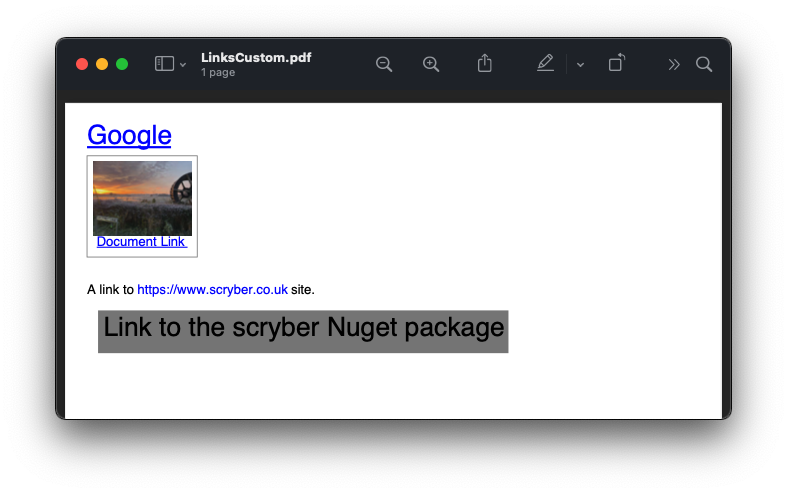
As a container, links can still have any content inside them, and be placed anywhere in the visual content of the document.
//Scryber.UnitSamples/LinkSamples.cs

public void SimpleLinksWithCustomAddition()
{
    //template from our first example
    var path = GetTemplatePath("Links", "LinksSimple.html");

    using (var doc = Document.ParseDocument(path))
    {
        doc.Params["siteurl"] = "https://www.scryber.co.uk";

        //create a new link

        var link = new Link()
        {
            Action = LinkAction.Uri,
            File = "https://www.nuget.org/packages/Scryber.Core/",
            Margins = new PDFThickness(10),
            Padding = new PDFThickness(5),
            BackgroundColor = PDFColors.Gray,
            PositionMode = PositionMode.Block
        };

        //add some inner content

        link.Contents.Add(new TextLiteral("Link to the scryber Nuget package"));

        //add it to the page (at the end)

        var pg = doc.Pages[0] as Page;
        pg.Contents.Add(link);

        using (var stream = GetOutputStream("Links", "LinksCustom.pdf"))
        {
            doc.SaveAsPDF(stream);
        }

    }
}
Note
The base link class does not add the blue underlined default style to the output. This can either be added as needed, or styled in any other way.
Fixing Broken Links
By default, when a link is not found for a destination, then it will not be enabled however the style and the output will still be honoured. If links are not working in a document then the, as always, the output trace log can be inspected to see if an error is reported, or change the document parsing mode to strict.
This can all be done either with the <?scryber append-log='true' ?> processing instruction or on the document itself doc.ConformanceMode = ParserConformanceMode.Strict.
<!DOCTYPE html>
<?scryber append-log='true' ?>
<html xmlns="http://www.w3.org/1999/xhtml">
<head>
    <title>Broken Navigation Links</title>
</head>
<body>

    <h4>Links with nowhere to go</h4>
    <div>
        <!-- Loop over the items for the content of the table -->
        <template data-bind="{{pages}}">
        <a href="{{concat('#',.Id)}}">{{.Id}}</a>,
        </template>
    </div>

</body>
</html>

See ../overview/scryber_output for more about the tracing and logging in document output.